

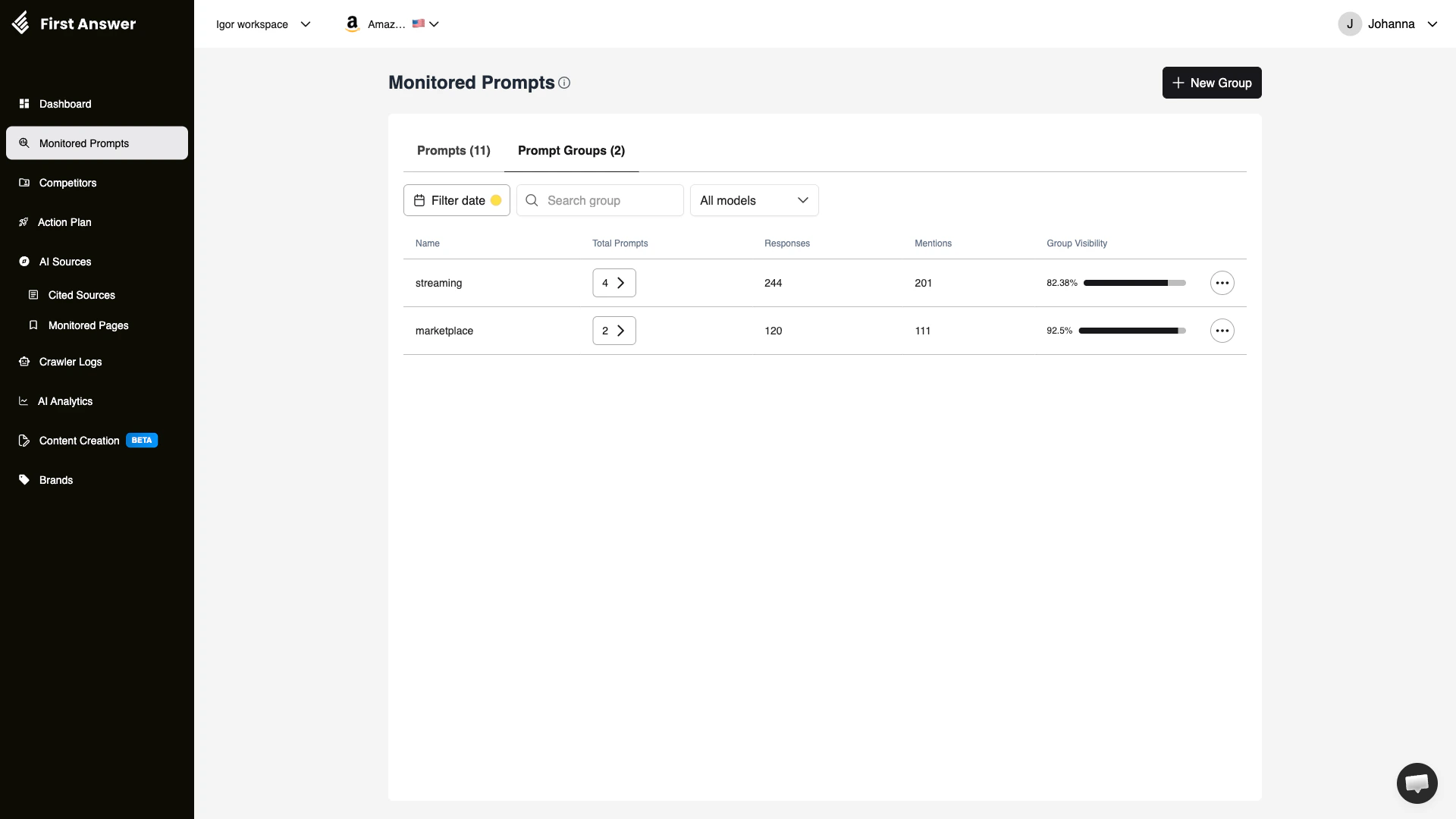
What are Prompt Groups?
Prompt Groups let you organize your monitored prompts into meaningful categories. Instead of managing all your prompts as a flat list, you can cluster them by topic, product area, competitor context, buyer persona, or any other dimension relevant to your strategy. Once grouped, you can analyze aggregate performance per group — understanding not just how individual prompts perform, but how entire topic areas perform together.Why groups matter
As your prompt library grows, groups become essential for making sense of your data:- Topic analysis: Are prompts about your pricing performing differently than prompts about your features?
- Market segmentation: How does your visibility differ across enterprise vs. SMB-related questions?
- Campaign tracking: Group prompts related to a product launch to measure AI visibility before and after.
- Team workflows: Different team members can focus on different groups without getting lost in the full prompt list.
Understanding the Groups table
Group Visibility bar
The Group Visibility column shows both a percentage and a progress bar for visual comparison across groups. A group with 0% visibility means no responses in that group mention your brand at all — a clear signal that this topic area needs attention.Filters
- Filter date: Scope the metrics to a specific time period
- Search group: Find a group by name when you have many
- All models: Filter group metrics to a specific AI model only
How to use Prompt Groups
1
Go to the Prompt Groups tab
On the Monitored Prompts page, click Prompt Groups at the top of the page to switch from the prompt list to the groups view.
2
Review group-level visibility
Scan the Group Visibility column to quickly identify which topic areas have the strongest and weakest AI presence for your brand.
3
Drill into a group
Click the prompt count badge (e.g., 5 →) next to a group to see all prompts belonging to it, filtered by that group.
4
Create a new group
Click + New Group to open the Create Group form and organize more prompts.
5
Manage an existing group
Click the ⋯ (three dots) menu on any group row to rename or delete the group.