

What is spreadsheet import?
Spreadsheet import lets you add many monitored prompts at once. You download your brand’s template spreadsheet, fill in one prompt per row, mark the groups for each prompt, and upload the file back. It’s the fastest way to:- Add dozens or thousands of prompts without typing them one by one.
- Put each prompt in one or more prompt groups.
- Create new groups while you build the list.
Step by step
Open the New prompt page
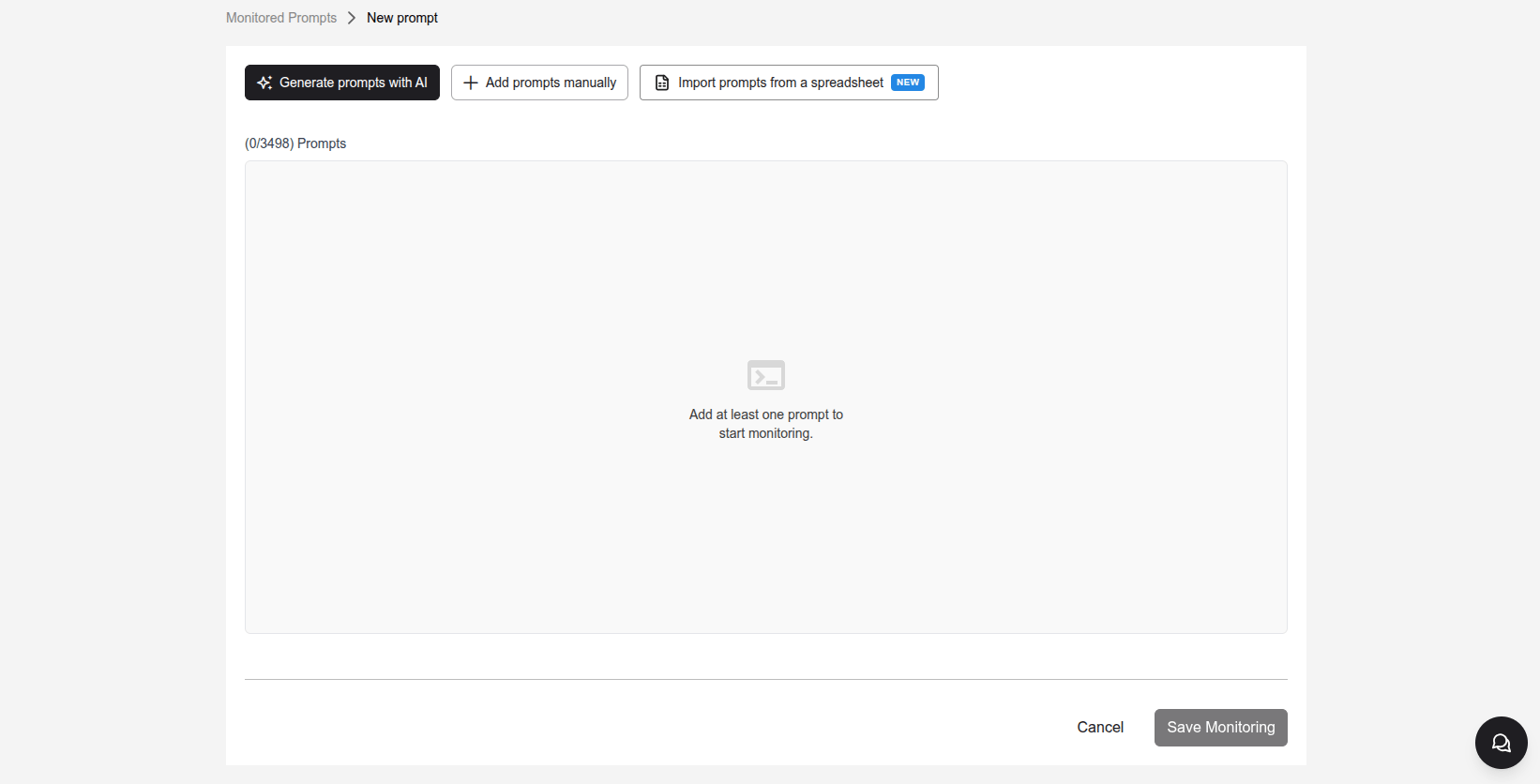
Download the template
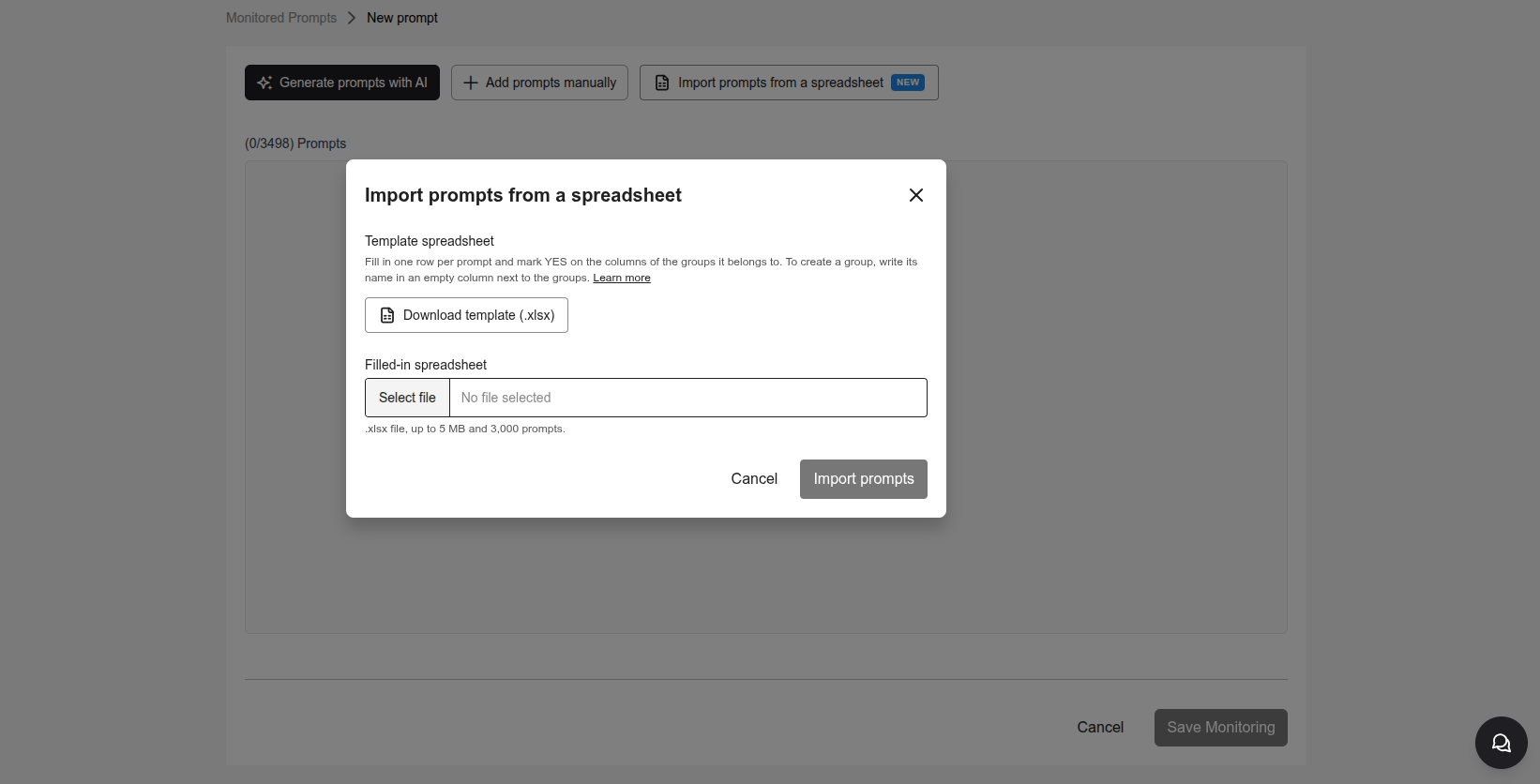
Fill in the spreadsheet
prompt column and mark YES on the columns of the groups it belongs to. See How to fill in the spreadsheet for details.Upload the file
Import the prompts
Review and save
How to fill in the spreadsheet
The template always has the same structure: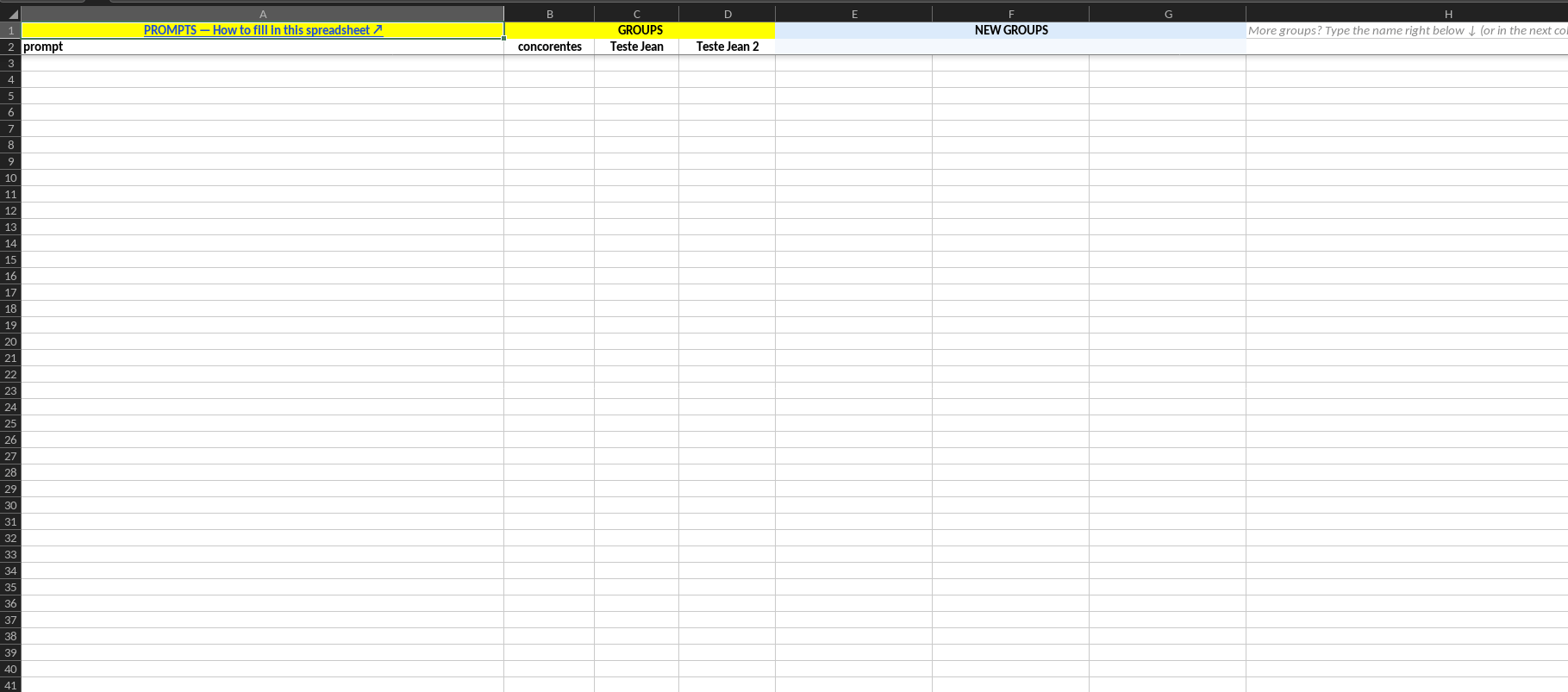
Write the prompts
In theprompt column, write one prompt per row, the way a user would ask an AI. For example: “Where can I take a pottery class in São Paulo?”.
Fully blank rows are skipped, so you don’t need to delete the leftover rows from the template.
Mark the groups of each prompt
Each group has its own column. To put a prompt in a group, click the cell in that group’s column and pick YES from the list. Leave the cell empty when the prompt doesn’t belong to the group.- A prompt can be in several groups: mark YES on as many columns as you want.
- A prompt can have no group: leave all group columns empty.
- Besides YES, the spreadsheet also accepts
SIM,xand1. This helps when you paste data from another spreadsheet.
Create a new group from the spreadsheet
You don’t need to create the group in First Answer first. After the existing group columns, the spreadsheet has free columns under the blue NEW GROUPS band.Write the group name
Mark the group's prompts
Import as usual
Need more groups?
The NEW GROUPS columns are just a starting point. To create more groups, type the name in row 2 of the column right after them, marked by the note “More groups? Type the name right below ↓”, or in the columns after that. Any column with a name becomes a group.New group rules
Can I change the spreadsheet?
Yes. The spreadsheet is read by each column’s name, not by its position. You can:- Reorder the columns: prompts still go to the right groups.
- Delete the column of a group you won’t use: prompts just don’t go into that group.
- Use a spreadsheet downloaded earlier: if someone created a group after the download, the spreadsheet still works. The new group just isn’t in it.
prompt column. Without it, the spreadsheet is rejected.
Fill in the spreadsheet with help from an AI
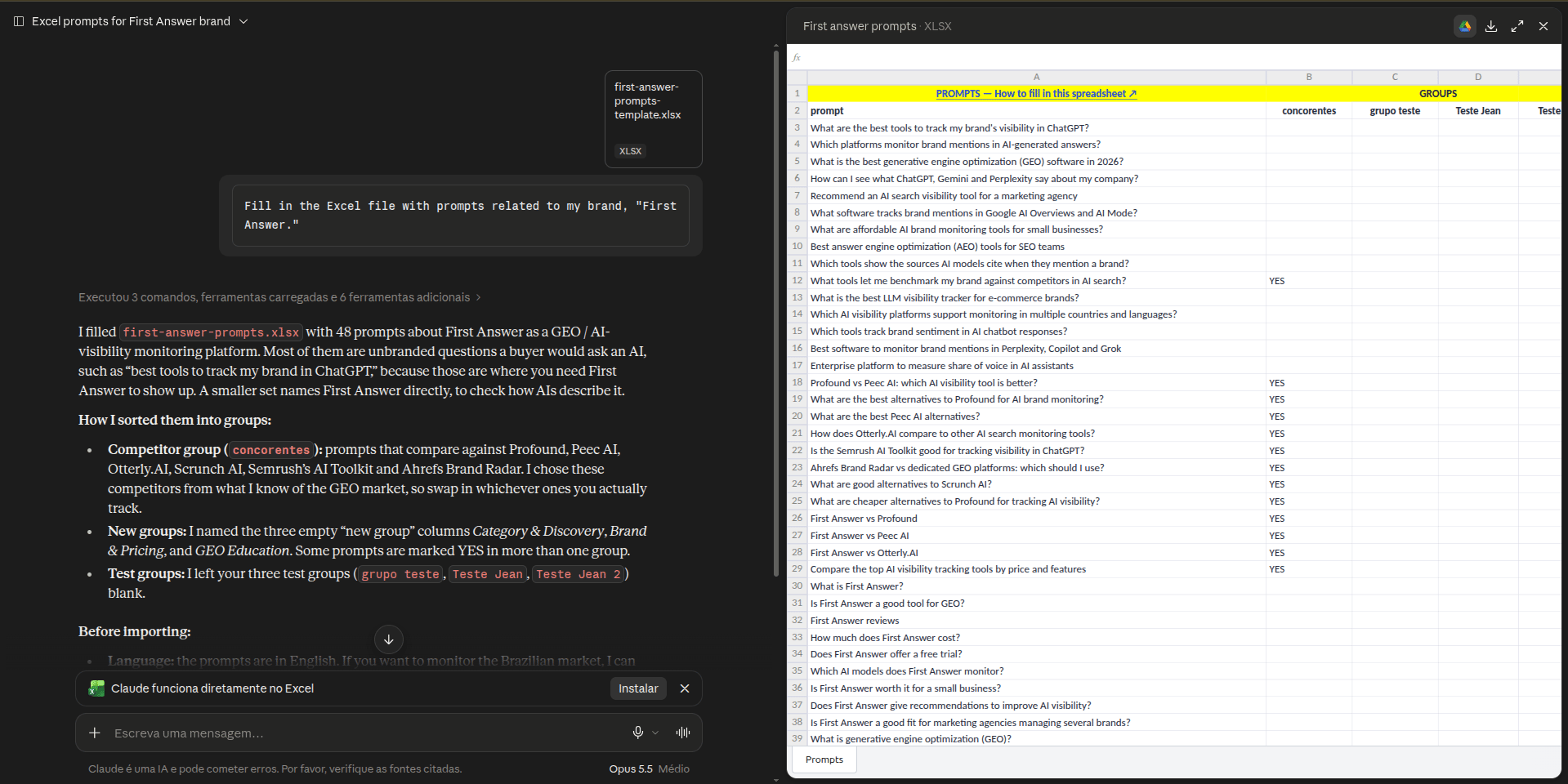
Already have your prompts in another file, a list or loose notes? You can ask an AI, like Claude or ChatGPT, to move everything into the template format.Download the template
Send the template and your prompts to the AI
Ask the AI to fill in the spreadsheet
.xlsx file back. See an example request below.Review and import
Limits
Skipped rows
Some rows don’t block the import but are left out. When this happens, the modal shows a yellow warning, for example 22 prompts ready · 2 rows will be skipped. Click Show details to see each row and the reason:Error messages
When the file can’t be used, the field turns red and the Import button is disabled. Fix the spreadsheet and upload it again.Unsupported format
Unsupported format
.xlsx. Use the template. If you edited it in Google Sheets, download it with File > Download > Microsoft Excel (.xlsx).The file is over the 5 MB limit
The file is over the 5 MB limit
The columns don't match the template
The columns don't match the template
prompt column wasn’t found. Download the template again and don’t rename the prompt column.We couldn't read the file
We couldn't read the file
.xlsx and upload it again.The spreadsheet has no prompts filled in
The spreadsheet has no prompts filled in
prompt column and upload it again.The spreadsheet has more than 3,000 prompts
The spreadsheet has more than 3,000 prompts
The spreadsheet has more prompts than you can add
The spreadsheet has more prompts than you can add
The column has marks but no group name
The column has marks but no group name
The group name is longer than 255 characters
The group name is longer than 255 characters
We couldn't import the prompts
We couldn't import the prompts
After importing
Imported prompts are added to the list on the New prompt page, together with the ones you added manually or with AI:- Each prompt shows its origin badge: Manual, AI or Spreadsheet.
- The groups marked in the spreadsheet appear in each row’s group selector. You can select, clear or create groups right there before saving.
- Nothing is saved until you click Save Monitoring. If you try to leave the page before that, First Answer warns you that the prompts will be lost.
FAQ
Can I use Google Sheets, Numbers or LibreOffice?
Can I use Google Sheets, Numbers or LibreOffice?
.xlsx. Some apps don’t show the options list or the help balloon on the columns. In that case, type YES directly in the cell.Can I write prompts and group names in other languages?
Can I write prompts and group names in other languages?
Does the import change the prompts I already monitor?
Does the import change the prompts I already monitor?
Can I put an already monitored prompt in a new group from the spreadsheet?
Can I put an already monitored prompt in a new group from the spreadsheet?