

What is a Workspace?
A Workspace is your team’s shared home inside First Answer. Every brand you monitor, every prompt you track, and every analysis you run lives inside a workspace — and everyone you invite to that workspace can access all of it together. When you create your First Answer account, a personal workspace is created for you automatically. You can rename it, invite teammates, and manage access from the Workspace settings page.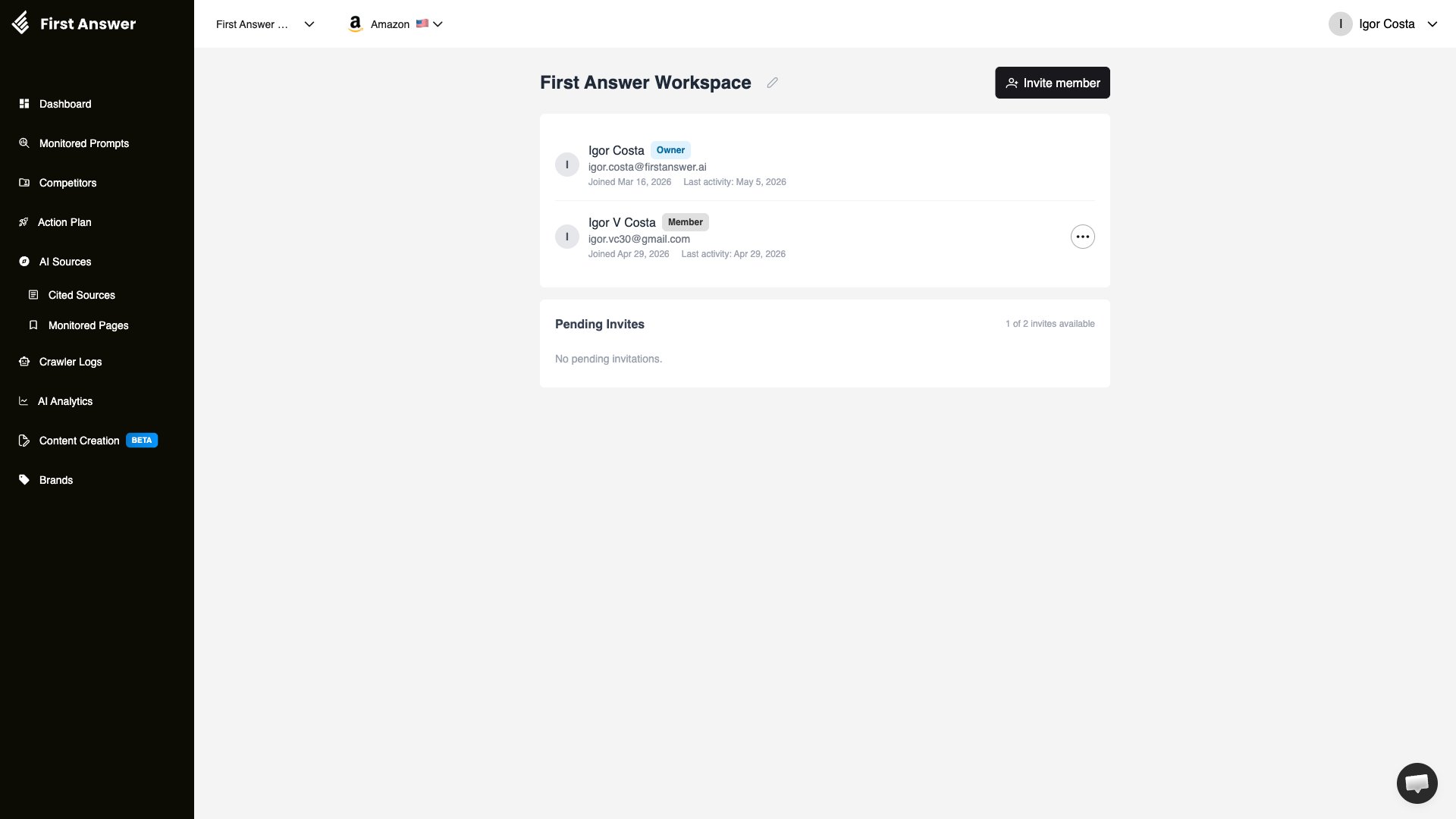
Switching workspaces
If you belong to more than one workspace — either as the owner or as a member invited by someone else — you can switch between them using the workspace selector in the top navigation bar.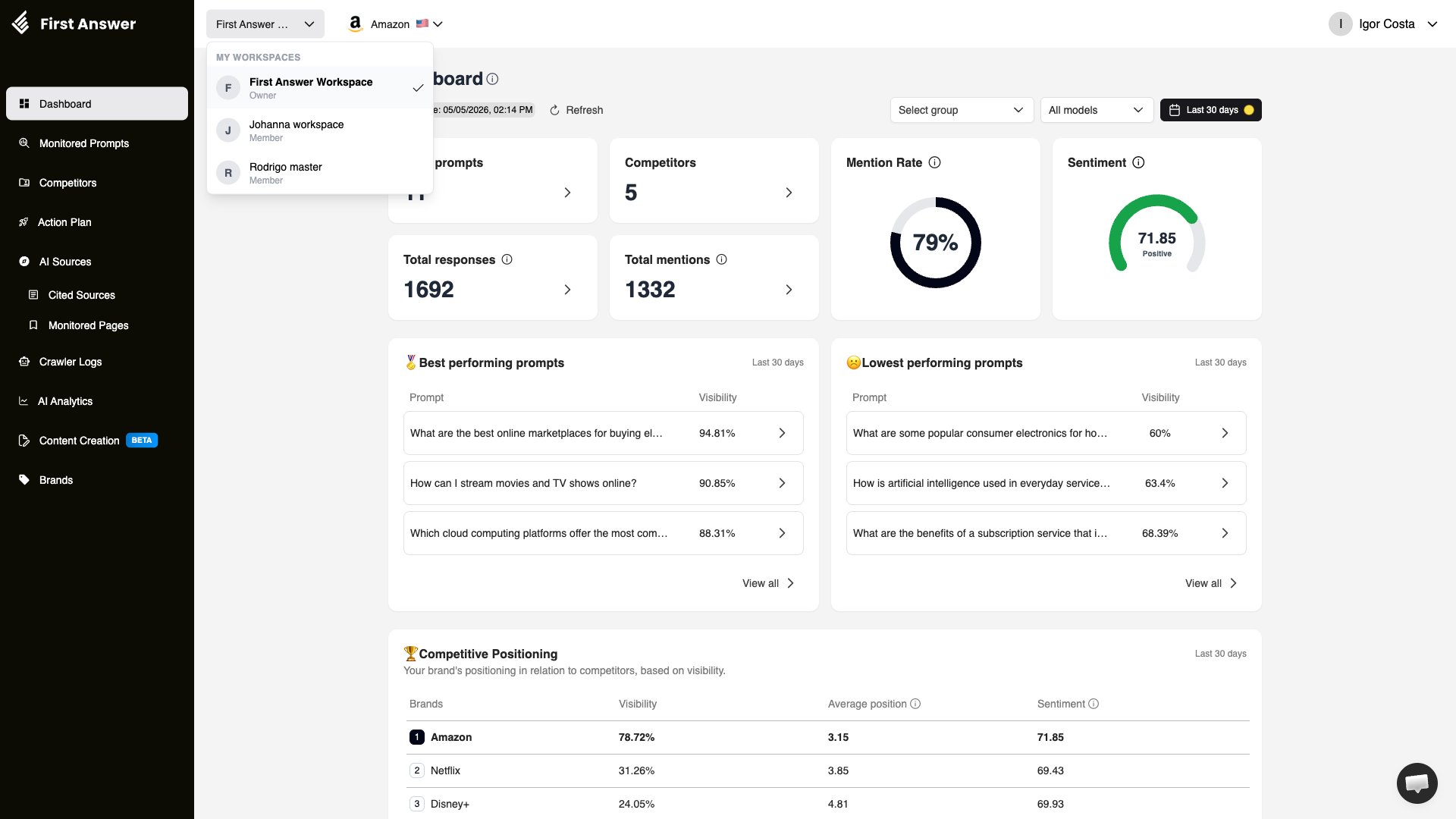
Each workspace is fully independent. Brands, monitored prompts, analyses, and members are not shared across workspaces.
Roles
Every workspace has three role types:
There is always exactly one owner per workspace. Ownership cannot be transferred, and the owner can’t leave the workspace.
Admins are created by promotion: the owner turns an existing member into an Admin (see Changing a member’s role). An Admin counts toward the seat limit just like a member, and can leave the workspace at any time.
Accessing Workspace settings
To open the Workspace settings page, click your name in the top-right corner. A dropdown menu appears — select Workspace. This option is only available to the owner and Admins of the selected workspace.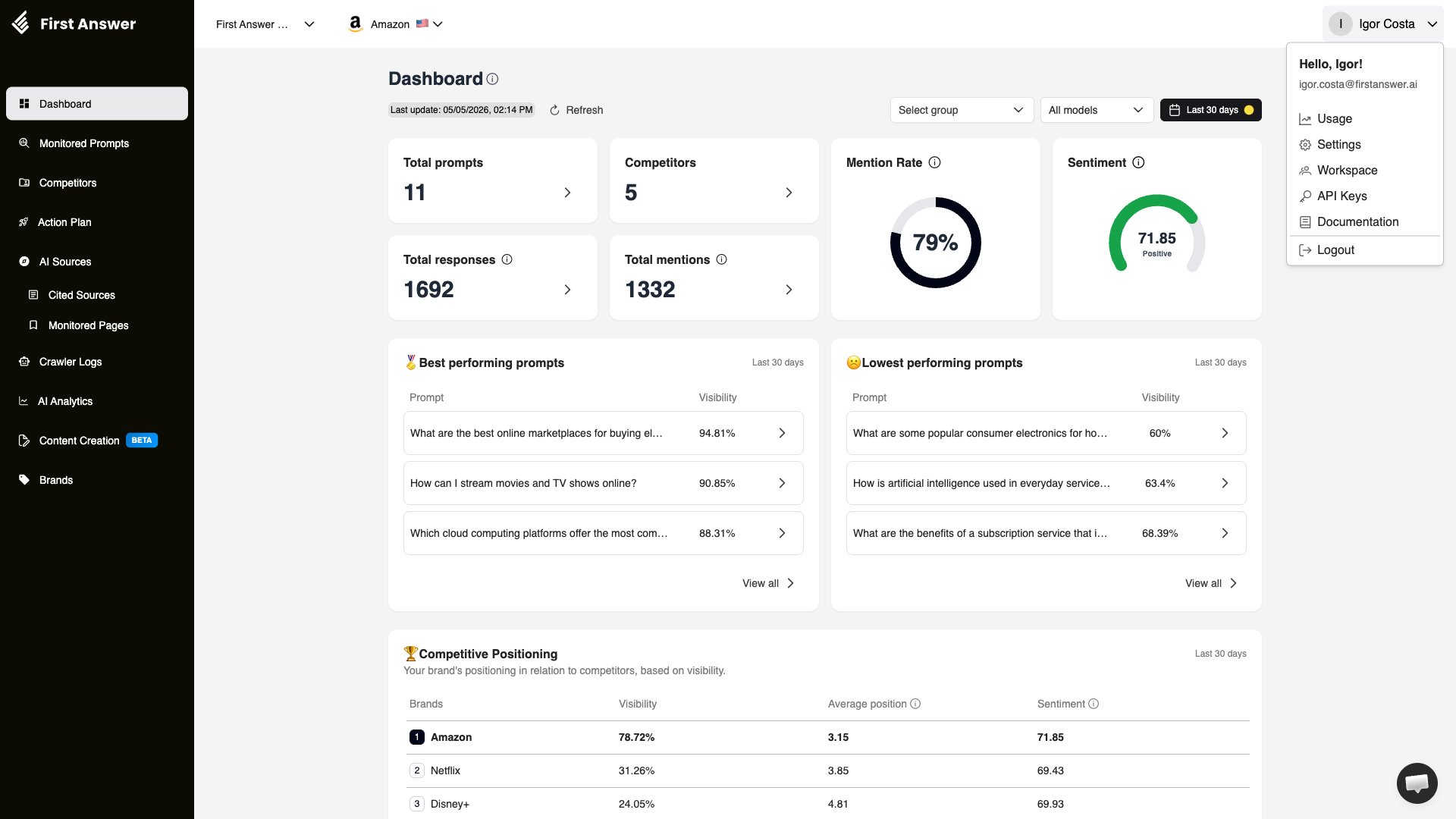
Inviting members
The owner and Admins can send invitations. To invite a teammate:1
Open Workspace settings
Click your name in the top-right corner, then select Workspace from the dropdown menu.
2
Click Invite member
On the Workspace page, click the Invite member button in the top-right corner.
3
Enter the email address
Type the teammate’s email address into the Email field and click Send invitation.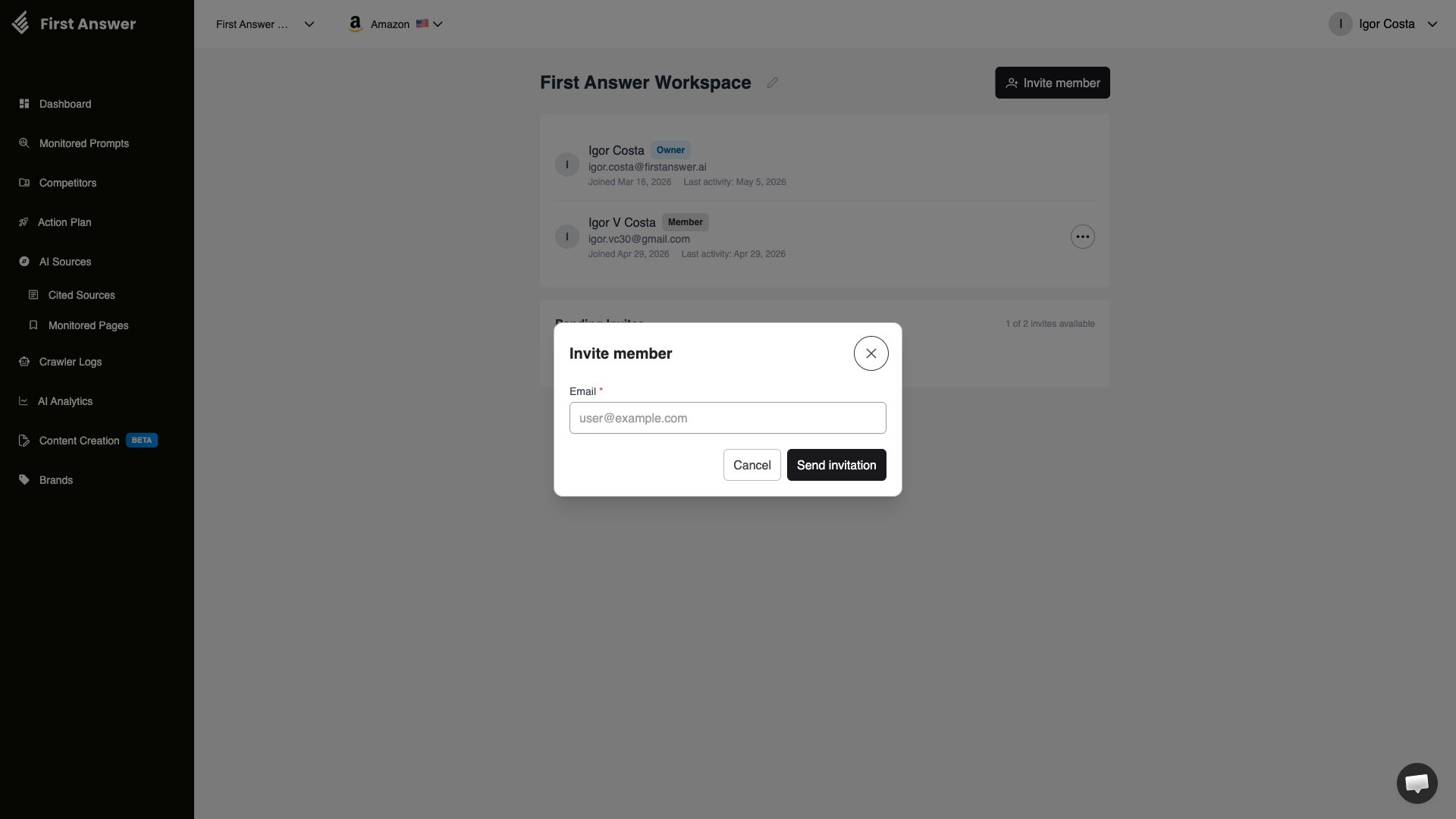
Invite links are tied to the email address they were sent to. Forwarding the link to a different email will not work — the recipient must sign up with the exact email address the invite was sent to.
Seat limits
The number of people you can have in your workspace depends on your plan. The seat count includes:- Active Members and Admins (the owner does not count toward the seat limit)
- Pending invitations that have not yet expired
Managing members
From the Workspace settings page, the owner and Admins can manage the member list:- View member details — each row shows the member’s name, email, role badge, join date, and date of last activity
- Remove a member — click the ··· menu next to a member and select Remove member. Their access is revoked immediately. The owner can remove Members and Admins; Admins can only remove regular Members
Changing a member’s role
Only the owner can change roles. Click the ··· menu next to a member and select:- Make admin — promotes a Member to Admin
- Revert to member — turns an Admin back into a regular Member
Managing pending invites
Invitations that have been sent but not yet accepted appear in the Pending Invites section of the Workspace settings page. From there, the owner and Admins can:- Resend — generates a fresh invite link and sends a new email. Also resets the 7-day expiry timer
- Revoke — cancels the invite so the existing link stops working
Activity log
The activity log shows who changed what inside the workspace, and when. Use it to follow changes made by your team and as evidence for internal or customer audits.Who has access
Only the workspace Owner and Admins can see the activity log. Regular members don’t see the section and can’t query the records, and this is enforced on the server, not only in the interface. Each record belongs to a single workspace. You only see the activity of the currently selected workspace, never that of other workspaces.How to access it
1
Open Workspace settings
Click your name in the top-right corner and select Workspace from the dropdown menu.
2
Open the log
At the bottom of the page, on the Activity log card, click View log.
What is recorded
A record is created whenever someone in the workspace makes a change through the platform, for example:- Brands: creation, editing, deletion, onboarding completion, and regeneration
- Competitors: monitored competitors (creation, editing, deletion, assignment) and ignored detected competitors
- Prompts: creation and deletion of monitored prompts, prompt groups, and assigning prompts to groups
- Monitored URLs: creation and deletion
- Recommended actions and content: status changes, content creation and editing, feedback, and version restores
- Workspace and team: renaming the workspace, invites (sending, resending, revoking), role changes, members being removed or leaving
- Integrations: linking and unlinking Google Search Console properties, and assigning AI Analytics and Crawler Logs projects
- Who made the change (user and email)
- When it was made (date and time)
- What was done (created, updated, deleted, or a specific action such as archiving or resending an invite)
- Which item (item type and name, and the brand when there is one)
- What changed, for edits: the previous and new value of each changed field
What is not recorded
- Views: opening pages, browsing dashboards, or exporting data doesn’t create a record. Only changes are recorded.
- Automatic processes: data collection and analyses that the platform runs in the background don’t appear in the log.
- Sensitive data: passwords, access tokens, and API keys are never stored. For API keys, only the name and prefix are recorded. Long text, such as the body of a piece of content, isn’t copied into the log either; only the fact that it changed is recorded.