

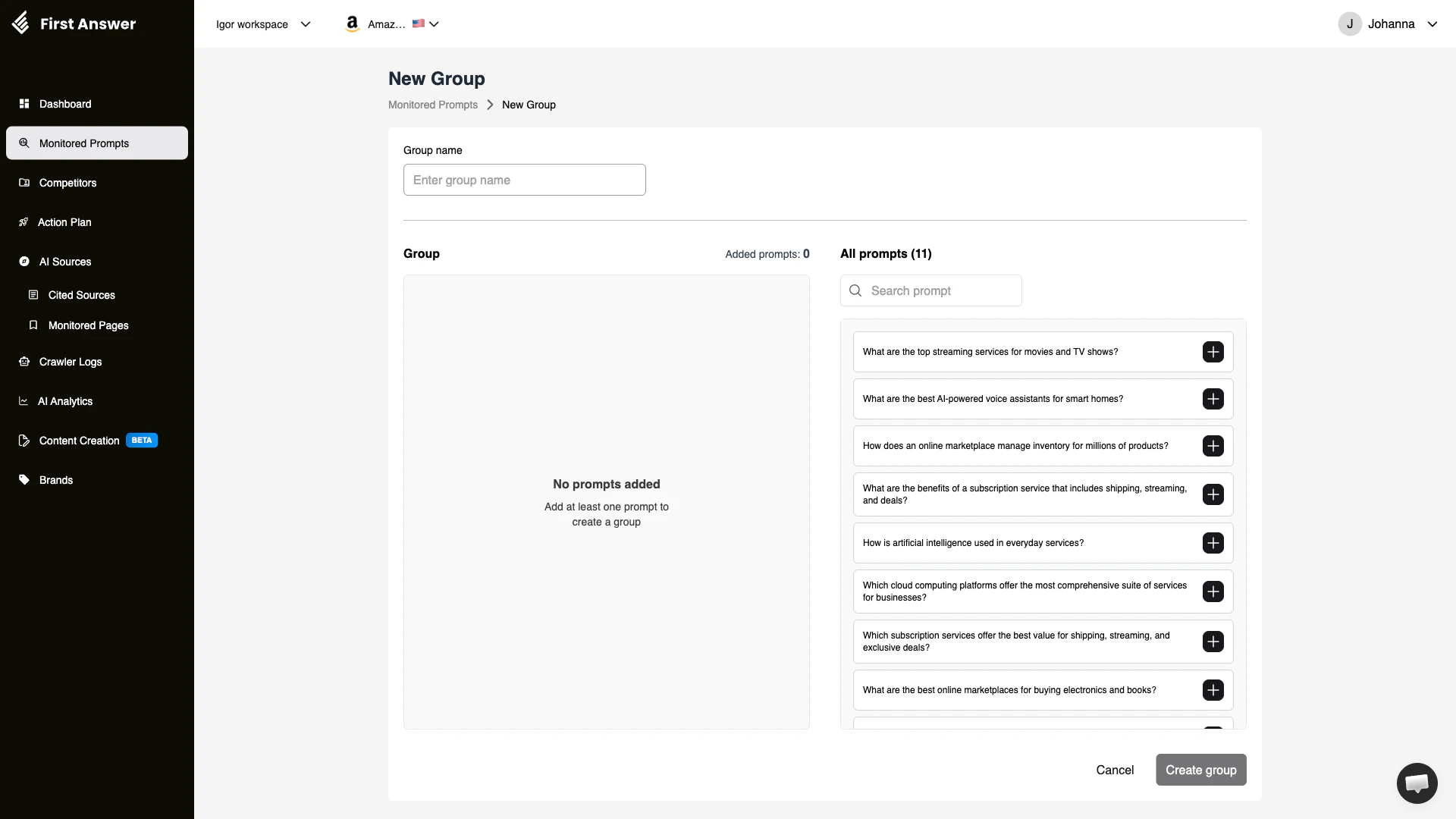
What is the Create Group form?
The Create Group form lets you build a new prompt group by giving it a name and selecting which monitored prompts belong to it. Groups help you organize your prompt library into logical categories so you can analyze visibility, mentions, and sentiment at a topic level — not just per individual prompt.Form structure
The form is divided into two panels:Left panel — Group
This is where your group takes shape. It starts empty (“No prompts added”) and fills as you add prompts from the right panel. The header shows Added prompts: N so you always know how many prompts are in the group before saving.Right panel — All prompts
A list of all your existing monitored prompts. Each prompt has a + button on the right to add it to the group. Use the Search prompt field at the top to quickly find a specific prompt when you have a large library.How to create a group
1
Open the New Group form
From the Monitored Prompts page, click + New Group in the top-right corner. You can also reach this page directly from the Prompt Groups tab.
2
Enter a group name
Type a descriptive name in the Group name field. Use names that reflect the category, topic, or purpose — for example: “Product Comparisons”, “Brand Awareness”, “Competitor Questions”, or “IELTS Preparation”.
3
Add prompts to the group
Browse the All prompts panel on the right. Click the + button next to each prompt you want to include. The prompt moves to the left panel as it’s added. Use the search bar to find specific prompts by keyword.
4
Review your selection
Check the left panel to confirm the right prompts are in the group. The Added prompts count in the header should match your expectations.
5
Create the group
Click Create group to save. You will be taken back to the Prompt Groups list where your new group appears with aggregated metrics.
You must add at least one prompt before you can create a group. The Create group button is disabled if the group is empty.
Best practices for naming groups
Good group names make it easier to navigate your prompt library and communicate insights to teammates:Key concept: group taxonomy
Think of your groups as a lightweight taxonomy for your AI visibility strategy. A well-designed taxonomy lets you answer questions like:- “Which topic categories drive the most AI mentions?”
- “Where are my biggest gaps — are they in product questions or brand awareness queries?”
- “How has visibility evolved across different topic areas over time?”