> ## Documentation Index
> Fetch the complete documentation index at: https://docs.firstanswer.ai/llms.txt
> Use this file to discover all available pages before exploring further.
# Prompt Groups
> Organize your monitored prompts into logical groups to analyze performance by topic, product line, market segment, or any other category that matters to your business.
 ## What are Prompt Groups?
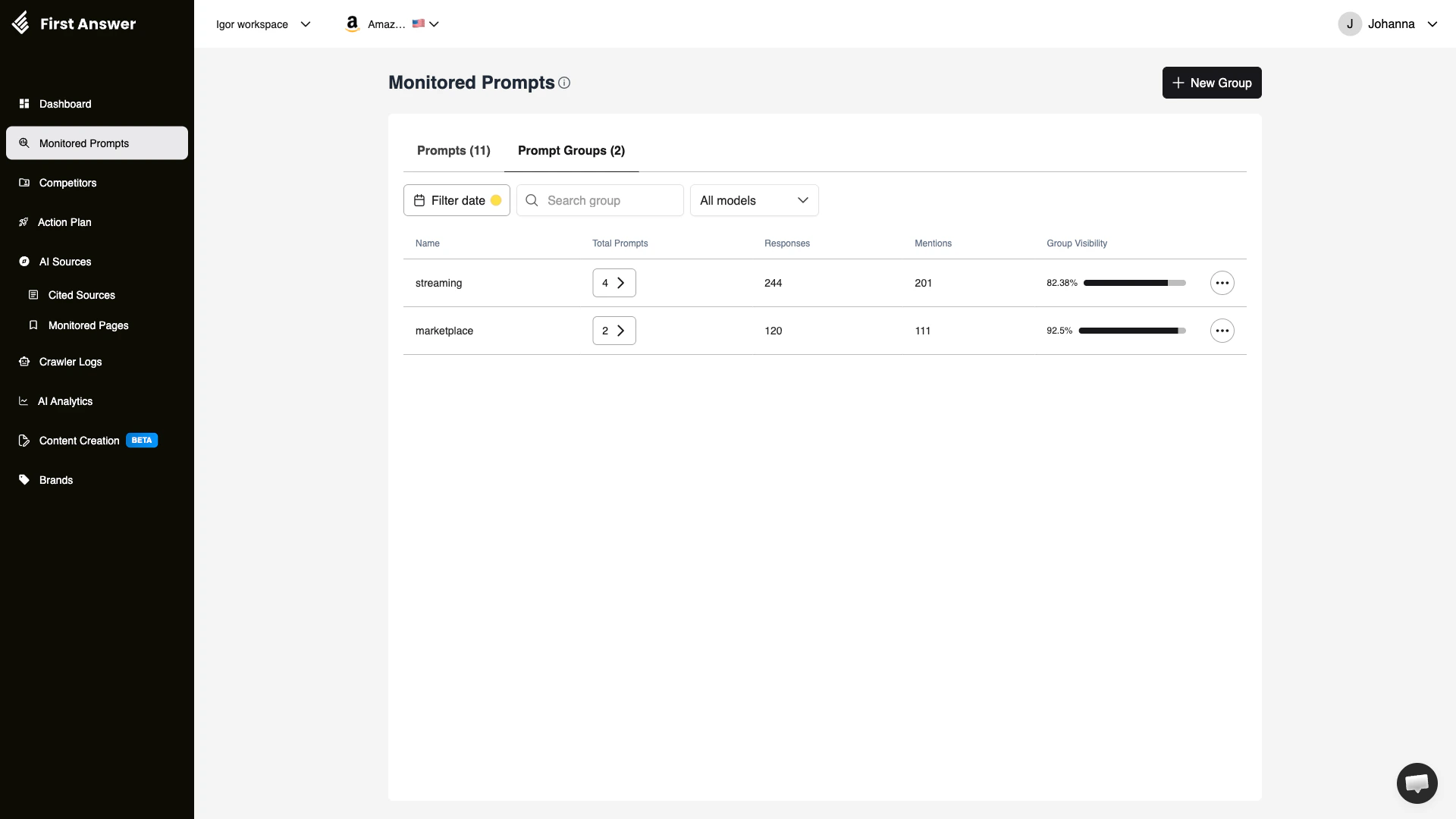
Prompt Groups let you organize your monitored prompts into meaningful categories. Instead of managing all your prompts as a flat list, you can cluster them by topic, product area, competitor context, buyer persona, or any other dimension relevant to your strategy.
Once grouped, you can analyze aggregate performance per group — understanding not just how individual prompts perform, but how entire topic areas perform together.
## Why groups matter
As your prompt library grows, groups become essential for making sense of your data:
* **Topic analysis**: Are prompts about your pricing performing differently than prompts about your features?
* **Market segmentation**: How does your visibility differ across enterprise vs. SMB-related questions?
* **Campaign tracking**: Group prompts related to a product launch to measure AI visibility before and after.
* **Team workflows**: Different team members can focus on different groups without getting lost in the full prompt list.
## Understanding the Groups table
| Column | Description |
| -------------------- | ------------------------------------------------------------------------------------------------------------- |
| **Name** | The group name you assigned when creating it |
| **Total Prompts** | How many prompts belong to this group, shown as a badge with a drill-down arrow |
| **Responses** | Total AI responses collected across all prompts in this group |
| **Mentions** | Total brand mentions across all responses in this group |
| **Group Visibility** | Aggregated visibility percentage for the group — the share of all responses in which your brand was mentioned |
### Group Visibility bar
The Group Visibility column shows both a percentage and a progress bar for visual comparison across groups. A group with 0% visibility means no responses in that group mention your brand at all — a clear signal that this topic area needs attention.
## Filters
* **Filter date**: Scope the metrics to a specific time period
* **Search group**: Find a group by name when you have many
* **All models**: Filter group metrics to a specific AI model only
## How to use Prompt Groups
On the [Monitored Prompts](/features/monitored-prompts) page, click **Prompt Groups** at the top of the page to switch from the prompt list to the groups view.
Scan the Group Visibility column to quickly identify which topic areas have the strongest and weakest AI presence for your brand.
Click the prompt count badge (e.g., **5 →**) next to a group to see all prompts belonging to it, filtered by that group.
Click **+ New Group** to open the [Create Group](/features/monitored-prompts-groups-create) form and organize more prompts.
Click the **⋯** (three dots) menu on any group row to rename or delete the group.
## Key concepts
### Aggregate vs. individual visibility
Group Visibility is an aggregate — it reflects performance across all prompts in the group combined. A group might have high visibility because a few prompts perform exceptionally well, even if many prompts in that group have 0% visibility. Always drill into the individual prompt list to understand the distribution.
### Groups and filters interact
When you select a group in the **Select group** filter on the main Prompts tab, the prompt list automatically filters to show only prompts in that group. This makes groups useful not just for aggregate reporting, but also for day-to-day triage.
Start with 3–5 broad groups aligned to your main business topics. Refine and add sub-groups as you learn which prompt categories matter most for your brand's AI strategy.
## What are Prompt Groups?
Prompt Groups let you organize your monitored prompts into meaningful categories. Instead of managing all your prompts as a flat list, you can cluster them by topic, product area, competitor context, buyer persona, or any other dimension relevant to your strategy.
Once grouped, you can analyze aggregate performance per group — understanding not just how individual prompts perform, but how entire topic areas perform together.
## Why groups matter
As your prompt library grows, groups become essential for making sense of your data:
* **Topic analysis**: Are prompts about your pricing performing differently than prompts about your features?
* **Market segmentation**: How does your visibility differ across enterprise vs. SMB-related questions?
* **Campaign tracking**: Group prompts related to a product launch to measure AI visibility before and after.
* **Team workflows**: Different team members can focus on different groups without getting lost in the full prompt list.
## Understanding the Groups table
| Column | Description |
| -------------------- | ------------------------------------------------------------------------------------------------------------- |
| **Name** | The group name you assigned when creating it |
| **Total Prompts** | How many prompts belong to this group, shown as a badge with a drill-down arrow |
| **Responses** | Total AI responses collected across all prompts in this group |
| **Mentions** | Total brand mentions across all responses in this group |
| **Group Visibility** | Aggregated visibility percentage for the group — the share of all responses in which your brand was mentioned |
### Group Visibility bar
The Group Visibility column shows both a percentage and a progress bar for visual comparison across groups. A group with 0% visibility means no responses in that group mention your brand at all — a clear signal that this topic area needs attention.
## Filters
* **Filter date**: Scope the metrics to a specific time period
* **Search group**: Find a group by name when you have many
* **All models**: Filter group metrics to a specific AI model only
## How to use Prompt Groups
On the [Monitored Prompts](/features/monitored-prompts) page, click **Prompt Groups** at the top of the page to switch from the prompt list to the groups view.
Scan the Group Visibility column to quickly identify which topic areas have the strongest and weakest AI presence for your brand.
Click the prompt count badge (e.g., **5 →**) next to a group to see all prompts belonging to it, filtered by that group.
Click **+ New Group** to open the [Create Group](/features/monitored-prompts-groups-create) form and organize more prompts.
Click the **⋯** (three dots) menu on any group row to rename or delete the group.
## Key concepts
### Aggregate vs. individual visibility
Group Visibility is an aggregate — it reflects performance across all prompts in the group combined. A group might have high visibility because a few prompts perform exceptionally well, even if many prompts in that group have 0% visibility. Always drill into the individual prompt list to understand the distribution.
### Groups and filters interact
When you select a group in the **Select group** filter on the main Prompts tab, the prompt list automatically filters to show only prompts in that group. This makes groups useful not just for aggregate reporting, but also for day-to-day triage.
Start with 3–5 broad groups aligned to your main business topics. Refine and add sub-groups as you learn which prompt categories matter most for your brand's AI strategy.