> ## Documentation Index
> Fetch the complete documentation index at: https://docs.firstanswer.ai/llms.txt
> Use this file to discover all available pages before exploring further.
# AI Analytics
> Track real traffic arriving at your website from AI-generated responses and understand how AI visibility converts to actual visitors.
 ## What is AI Analytics?
AI Analytics closes the loop between AI visibility and real business impact. While other features track how your brand appears in AI responses, AI Analytics tracks what happens next — **how many users actually visit your website after seeing your brand mentioned by an AI model**.
This is the ultimate measure of your AI visibility strategy's effectiveness. Appearances in AI responses only matter if they drive real traffic and engagement.
## How it works
AI Analytics integrates with your website to detect visitors arriving from AI platforms. When a user clicks a link in an AI-generated response (e.g., a citation link in Perplexity or a reference in ChatGPT), that visit is tracked and attributed to the originating AI model.
## Dashboard sections
### Visitors Over Time
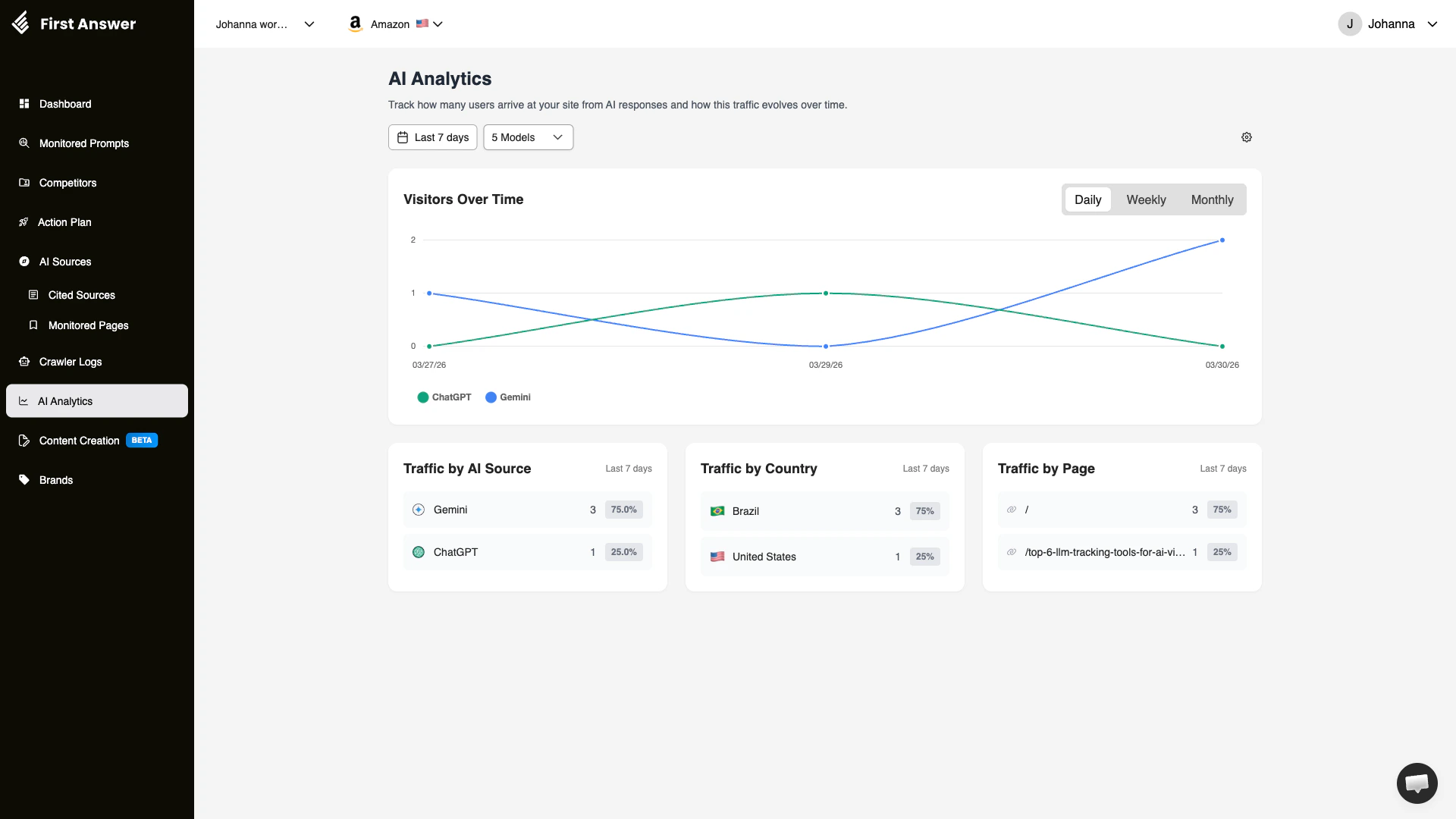
A time-series chart showing the number of AI-referred visitors per day. Each AI model is represented by a distinct color, making it easy to see which models drive the most traffic. Toggle between **Daily**, **Weekly**, and **Monthly** views.
### Traffic by AI Source
Shows which AI models are driving the most visitors to your site:
* **AI Model**: The source of the traffic (e.g., ChatGPT, Gemini, Perplexity)
* **Visit count**: Total number of visitors from this model
* **Percentage**: This model's share of your total AI traffic
### Traffic by Country
Geographic breakdown of your AI-referred visitors. This helps you understand which markets are discovering your brand through AI models and can inform localization or market expansion decisions.
### Traffic by Page
Shows which pages on your site receive the most visitors from AI sources:
* **Page URL**: The landing page receiving AI traffic
* **Visit count**: Number of visitors arriving at this page
* **Percentage**: This page's share of total AI traffic
## Filters
* **Date range**: Default is last 7 days, adjustable for longer trends
* **Models**: Filter by specific AI model to see traffic from only that source
## Key concepts
### From visibility to traffic
The relationship between AI visibility and AI traffic is not always linear. You may have high visibility (your brand is mentioned often) but low traffic (users don't click through). This can happen when:
* AI responses mention your brand but don't link to your site
* Your brand is mentioned in a way that doesn't inspire curiosity or action
* The AI model doesn't provide a direct URL
Conversely, some models like Perplexity consistently provide source links, making it easier to drive traffic from AI responses.
### AI traffic attribution
Not all AI-referred traffic is equal. Understanding the source helps you prioritize:
* **Perplexity**: High click-through rates because responses always include source links
* **ChatGPT**: Variable — depends on whether the response includes links
* **Gemini / Google AI Mode**: Growing source as Google integrates AI into search
* **Bing Copilot**: Traffic from Copilot often comes with purchase intent
### Measuring ROI
AI Analytics lets you quantify the ROI of your AI visibility efforts. By tracking:
1. How much AI traffic you receive
2. Which pages receive the most AI traffic
3. How this traffic grows over time
You can connect your visibility improvements directly to business metrics.
## Setting up AI Analytics
To start tracking AI-referred traffic, you need to add the FirstAnswer tracking script to your website. There are two ways to do this.
### Adding the script directly to your site
Copy the snippet from your account settings and paste it inside the `` tag of every page you want to track:
```html theme={null}
```
Replace `YOUR_PROJECT_ID` with the value shown in your account settings.
### Adding the script via Google Tag Manager
If your site uses Google Tag Manager, you can deploy the tracking script without editing your HTML directly.
Go to [tagmanager.google.com](https://tagmanager.google.com) and open the **workspace** for your website.
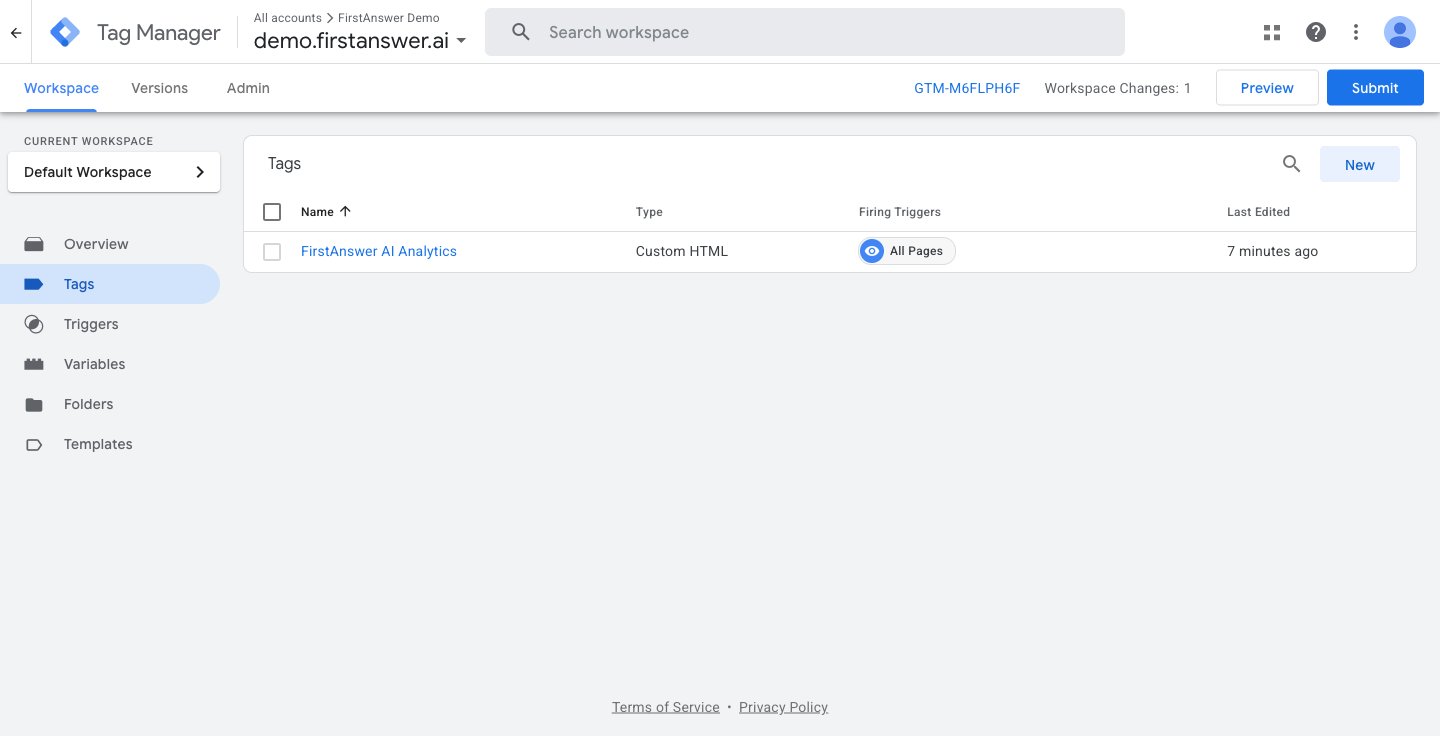
In the left sidebar, click **Tags**, then click **New**.
## What is AI Analytics?
AI Analytics closes the loop between AI visibility and real business impact. While other features track how your brand appears in AI responses, AI Analytics tracks what happens next — **how many users actually visit your website after seeing your brand mentioned by an AI model**.
This is the ultimate measure of your AI visibility strategy's effectiveness. Appearances in AI responses only matter if they drive real traffic and engagement.
## How it works
AI Analytics integrates with your website to detect visitors arriving from AI platforms. When a user clicks a link in an AI-generated response (e.g., a citation link in Perplexity or a reference in ChatGPT), that visit is tracked and attributed to the originating AI model.
## Dashboard sections
### Visitors Over Time
A time-series chart showing the number of AI-referred visitors per day. Each AI model is represented by a distinct color, making it easy to see which models drive the most traffic. Toggle between **Daily**, **Weekly**, and **Monthly** views.
### Traffic by AI Source
Shows which AI models are driving the most visitors to your site:
* **AI Model**: The source of the traffic (e.g., ChatGPT, Gemini, Perplexity)
* **Visit count**: Total number of visitors from this model
* **Percentage**: This model's share of your total AI traffic
### Traffic by Country
Geographic breakdown of your AI-referred visitors. This helps you understand which markets are discovering your brand through AI models and can inform localization or market expansion decisions.
### Traffic by Page
Shows which pages on your site receive the most visitors from AI sources:
* **Page URL**: The landing page receiving AI traffic
* **Visit count**: Number of visitors arriving at this page
* **Percentage**: This page's share of total AI traffic
## Filters
* **Date range**: Default is last 7 days, adjustable for longer trends
* **Models**: Filter by specific AI model to see traffic from only that source
## Key concepts
### From visibility to traffic
The relationship between AI visibility and AI traffic is not always linear. You may have high visibility (your brand is mentioned often) but low traffic (users don't click through). This can happen when:
* AI responses mention your brand but don't link to your site
* Your brand is mentioned in a way that doesn't inspire curiosity or action
* The AI model doesn't provide a direct URL
Conversely, some models like Perplexity consistently provide source links, making it easier to drive traffic from AI responses.
### AI traffic attribution
Not all AI-referred traffic is equal. Understanding the source helps you prioritize:
* **Perplexity**: High click-through rates because responses always include source links
* **ChatGPT**: Variable — depends on whether the response includes links
* **Gemini / Google AI Mode**: Growing source as Google integrates AI into search
* **Bing Copilot**: Traffic from Copilot often comes with purchase intent
### Measuring ROI
AI Analytics lets you quantify the ROI of your AI visibility efforts. By tracking:
1. How much AI traffic you receive
2. Which pages receive the most AI traffic
3. How this traffic grows over time
You can connect your visibility improvements directly to business metrics.
## Setting up AI Analytics
To start tracking AI-referred traffic, you need to add the FirstAnswer tracking script to your website. There are two ways to do this.
### Adding the script directly to your site
Copy the snippet from your account settings and paste it inside the `` tag of every page you want to track:
```html theme={null}
```
Replace `YOUR_PROJECT_ID` with the value shown in your account settings.
### Adding the script via Google Tag Manager
If your site uses Google Tag Manager, you can deploy the tracking script without editing your HTML directly.
Go to [tagmanager.google.com](https://tagmanager.google.com) and open the **workspace** for your website.
In the left sidebar, click **Tags**, then click **New**.
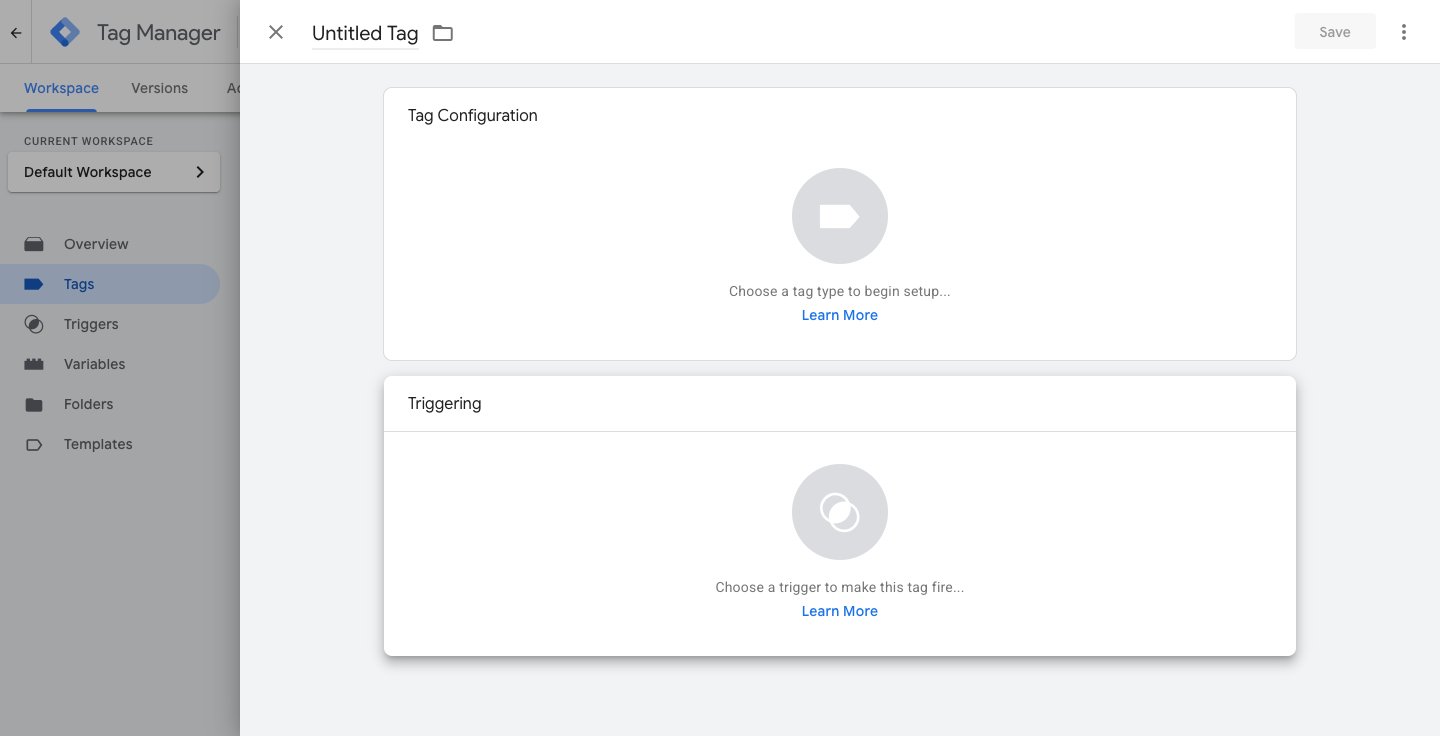
 Click **Tag Configuration** to choose the tag type.
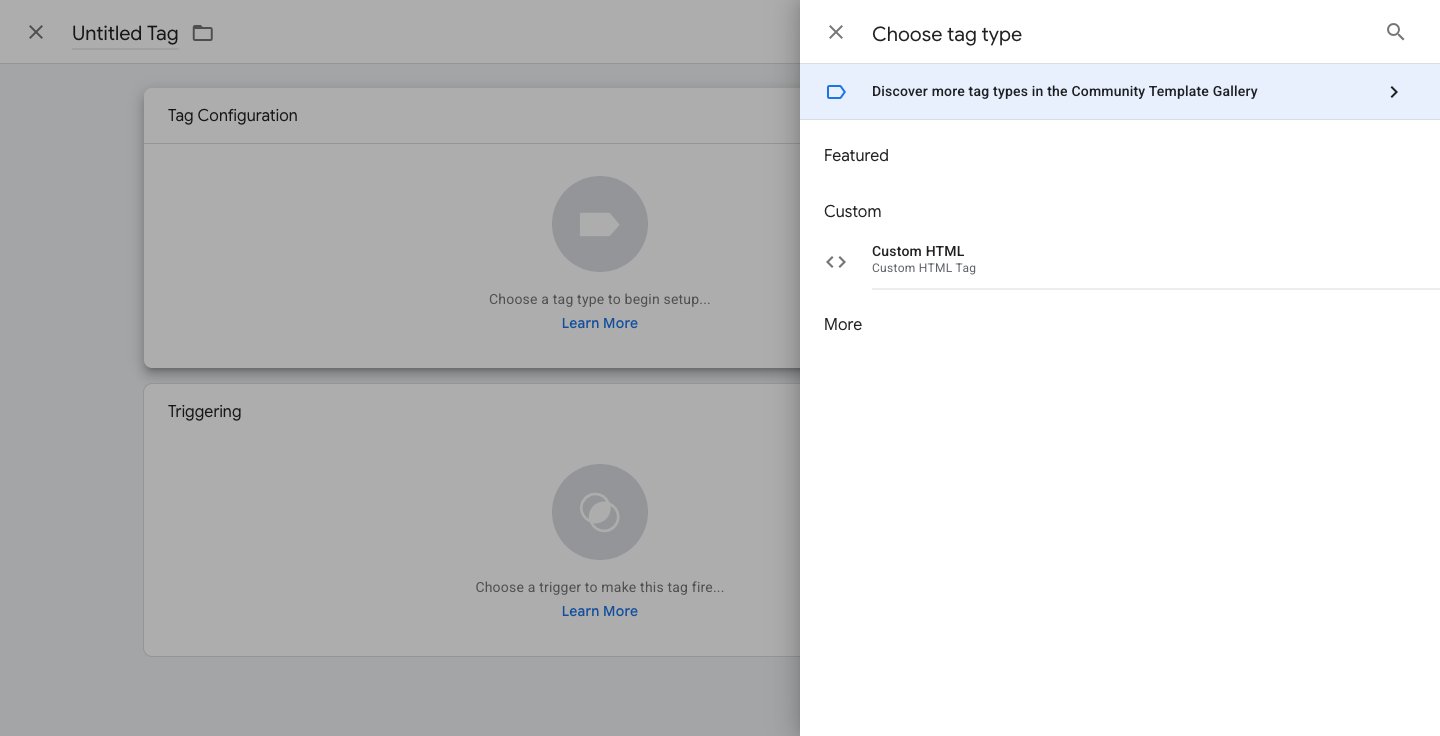
 Search for **Custom HTML** and select it.
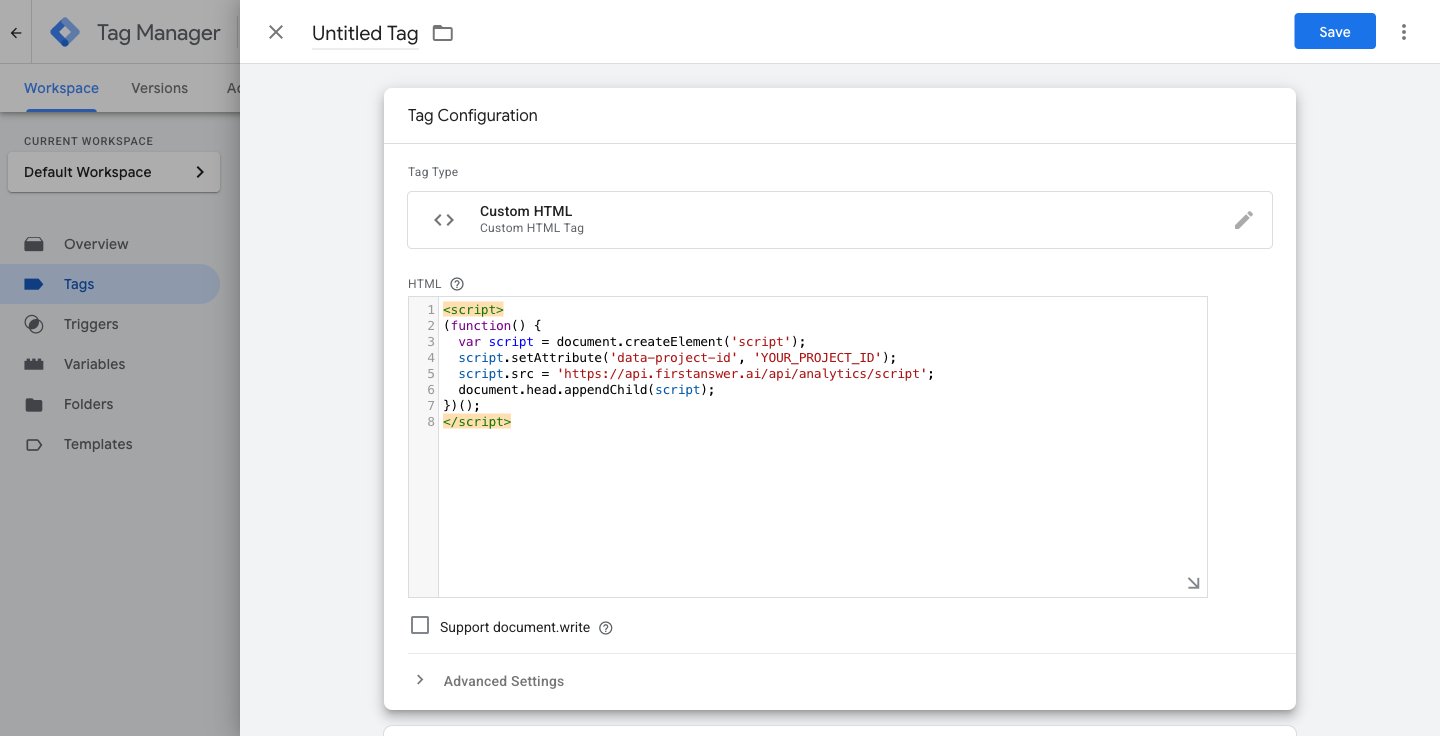
 Paste the following snippet into the HTML field:
```html theme={null}
```
Replace `YOUR_PROJECT_ID` with the value shown in your FirstAnswer account settings.
Paste the following snippet into the HTML field:
```html theme={null}
```
Replace `YOUR_PROJECT_ID` with the value shown in your FirstAnswer account settings.
 Scroll down to the **Triggering** section and click on it.
Choose the parameters that make sense for your site. For all pages, select **All Pages** to ensure the script runs on every page of your site. Otherwise, select the event that makes sense for your site.
Scroll down to the **Triggering** section and click on it.
Choose the parameters that make sense for your site. For all pages, select **All Pages** to ensure the script runs on every page of your site. Otherwise, select the event that makes sense for your site.
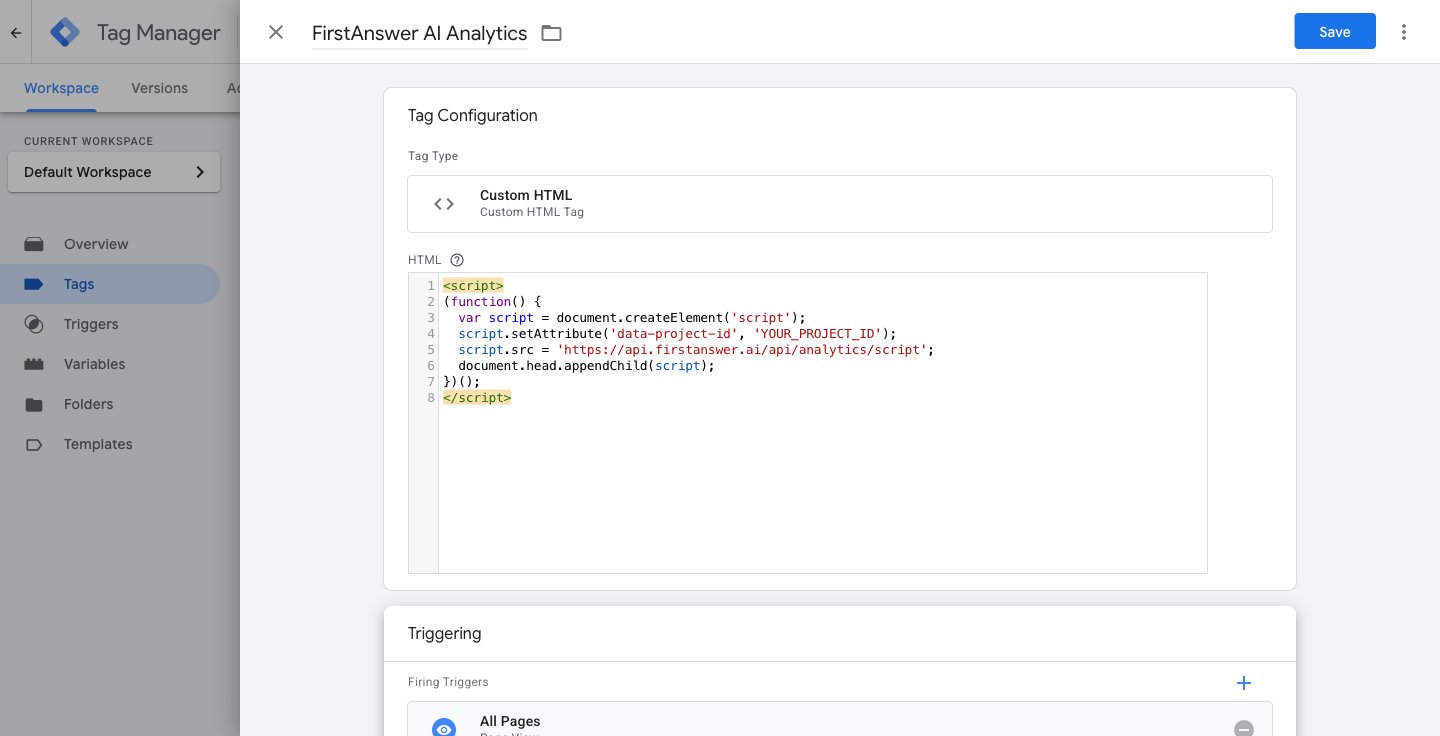
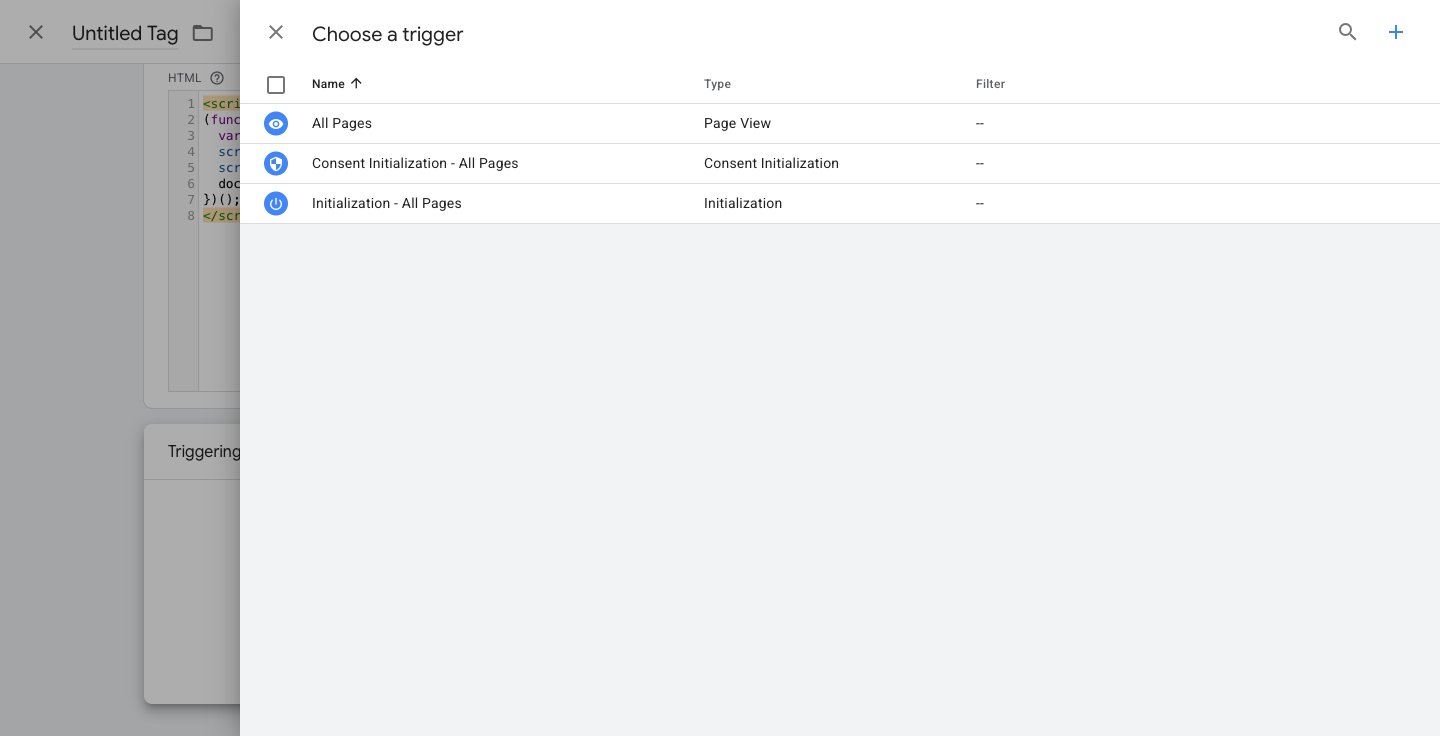 Give the tag a name (e.g., `FirstAnswer AI Analytics`), click **Save**, then click **Submit** to publish your changes.
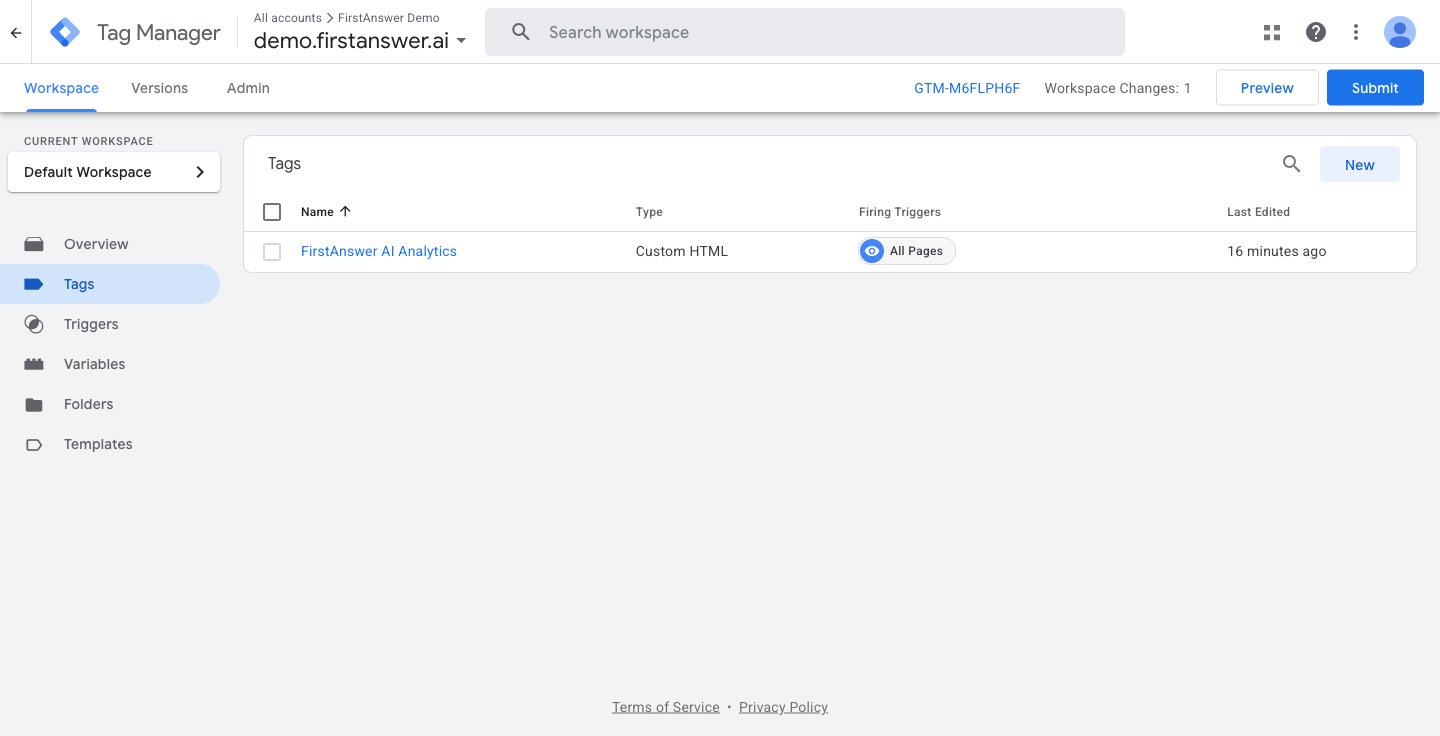
 After saving, the tag appears in your Tags list ready to be published.
 After publishing, visit a page on your site to verify the tag fires. In GTM, use **Preview** mode before publishing to confirm the tag loads correctly.
## How to use AI Analytics
Ensure your website has AI Analytics properly configured by following the setup instructions in your account settings.
Check the Traffic by AI Source section to see which AI models drive the most visitors to your site.
Focus on pages that receive the most AI traffic. Ensure they have clear calls-to-action, relevant content, and a good user experience.
Cross-reference AI Analytics with your [Monitored Prompts](/features/monitored-prompts) and [Cited Sources](/features/cited-sources) data. High visibility + low traffic means you need more direct links. High traffic + low visibility means a few key sources are doing the heavy lifting.
Use the Visitors Over Time chart to measure the impact of your AI visibility improvements. As you optimize content and get cited by more sources, AI traffic should trend upward.
AI Analytics is especially powerful when combined with your existing web analytics (Google Analytics, Plausible, etc.). Compare AI-referred traffic against organic search traffic to understand the relative impact of AI on your overall traffic mix.
After publishing, visit a page on your site to verify the tag fires. In GTM, use **Preview** mode before publishing to confirm the tag loads correctly.
## How to use AI Analytics
Ensure your website has AI Analytics properly configured by following the setup instructions in your account settings.
Check the Traffic by AI Source section to see which AI models drive the most visitors to your site.
Focus on pages that receive the most AI traffic. Ensure they have clear calls-to-action, relevant content, and a good user experience.
Cross-reference AI Analytics with your [Monitored Prompts](/features/monitored-prompts) and [Cited Sources](/features/cited-sources) data. High visibility + low traffic means you need more direct links. High traffic + low visibility means a few key sources are doing the heavy lifting.
Use the Visitors Over Time chart to measure the impact of your AI visibility improvements. As you optimize content and get cited by more sources, AI traffic should trend upward.
AI Analytics is especially powerful when combined with your existing web analytics (Google Analytics, Plausible, etc.). Compare AI-referred traffic against organic search traffic to understand the relative impact of AI on your overall traffic mix.